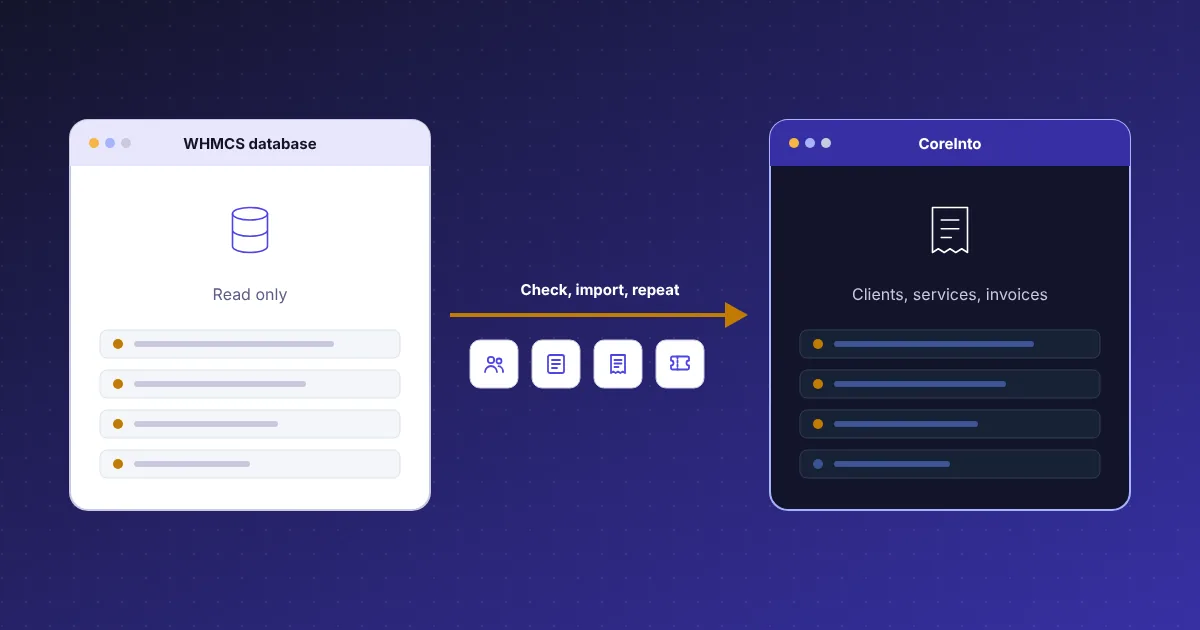
The guided WHMCS import under Utilities › Import Data
Leaving a billing system is usually harder than choosing a new one, because the records are what you cannot afford to lose. CoreInto treats the move from WHMCS as a built-in feature rather than a consultancy project. Utilities › Import Data is a page in the admin area that connects to a WHMCS database, version 7.10 through 8.x, reads it, and writes the equivalent records into CoreInto. There is nothing to export from WHMCS and no intermediate file format; the import reads the live tables.
The page runs in three parts. The first part checks the database: you give the host, name, user and password of the WHMCS database, CoreInto connects, confirms the version and the tables it expects, and reports the counts it sees. Nothing is written at this stage, so a wrong password or an unsupported version is caught before any work starts. The second part is the import itself, and the third is what you read when it finishes: a comparison report and a set of notes.
The whole process is designed to be repeated. A first run on a test installation shows you what CoreInto will look like with your data in it; later runs bring the records up to date; a final run happens on the day you switch. The chapter on importing in the administrator guide walks through every screen.
What the import brings across from a WHMCS database
The import copies the records in the order their relationships require. Currencies come first, because clients and prices refer to them. Staff accounts follow, then clients with their users, so that one account with several logins in WHMCS becomes one client with several users in CoreInto, each keeping their email address and password hash. Client groups, custom fields, notes and credit balances are attached to the clients they belong to, and the email history can be included if you want it.
The catalogue comes next: product groups and products with their per-term prices, configurable options and add-ons, and domain pricing per TLD. Servers and server groups are created so that services can point to them, and payment methods are recorded so that each client keeps the method they used. Then the transactional records: orders, services with their next due dates and statuses, domains with their expiry dates and nameservers, invoices with their line items, transactions and payments, credit and quotes.
Support records close the list. Tickets are copied with their replies and departments, together with the knowledgebase, announcements and downloads. Affiliates arrive with their commissions, the to-do list is copied, and WHMCS settings that have a direct CoreInto equivalent are set. After the run, a client who signs in sees the same services, domains, invoices and tickets they saw yesterday.
What the WHMCS import skips on purpose and why
Some things are not copied, and the import says so rather than pretending. WHMCS stores gateway credentials, registrar credentials and server access details in its own encrypted form, tied to its own key; CoreInto cannot and should not read them, so you re-enter gateway keys, registrar API keys and server tokens in CoreInto's settings, where they are encrypted with the key in your configuration file. Saved card tokens held at a payment provider belong to the provider's account and are not part of the database import.
Records that do not map to anything in CoreInto are skipped too. WHMCS addons from its marketplace, hooks, custom templates and theme files are WHMCS code and have no equivalent to import; their function is replaced by CoreInto's own templates, add-on modules and API. Product types that rely on a module CoreInto does not have are imported as products but need a module chosen before they can provision. Each skipped record appears in the notes with a reason, so the list is reviewable rather than silent.
This is deliberate. An import that guessed at credentials or invented module settings would leave you with a system that looked ready and failed on the first renewal. Re-entering a handful of keys takes an afternoon; discovering a wrong one when a payment fails takes much longer.
Reading the comparison report and the import notes
An import you cannot verify is an import you cannot trust. When a run finishes, CoreInto shows a comparison report: for each kind of record, the number found in WHMCS and the number now in CoreInto, side by side. Clients, users, products, services, domains, invoices, transactions, tickets and the rest each get a line. Matching counts are the normal result; a difference points you straight at the table to look into, and the notes usually explain it.
The notes are the import's running commentary. They record every record that was skipped on purpose with the reason, every value that had to be adapted to fit a CoreInto field, and anything that looked unusual in the source data, such as a service pointing to a server that no longer exists or an invoice in a currency that was deleted. Reading the notes once on the first test run tells you what to tidy in WHMCS before the next run, or what to fix in CoreInto after the final one.
Both the report and the notes are kept with the run, so you can compare the first trial import with the switch-over import weeks later. Staff who were not present for the import can still see what was done and why, which matters when a client asks about an old invoice months afterwards.
Running the import again until the day you switch over
A migration done in one evening is a migration done under pressure. CoreInto lets you spread it out. The import can be run as many times as you need while WHMCS remains your live system. Each run begins with a wipe that removes the records the previous import created, leaving your own CoreInto configuration in place, and then copies the current state of the WHMCS database again. Orders placed, invoices paid and tickets answered in WHMCS since the last run are all picked up.
That gives you a realistic test environment with your own data. Between runs you connect the payment gateways in sandbox mode and pay a test invoice, add the intoPanel or cPanel & WHM servers and test a module action against a real account, enter registrar credentials and try a WHOIS lookup, choose the Classic or Horizon client-area template, and translate or edit the email templates. None of that work is lost by the next import, because the wipe touches only imported records.
When the test installation behaves as you want, pick a quiet hour, run the import one last time, turn on the cron job, point your billing domain at CoreInto and take WHMCS offline. The manual's section on running it again until the switch-over lists the order of those steps.
After the WHMCS import: what to check before clients arrive
With the records in place, a short list of settings turns an imported database into a working billing system. Confirm the cron job runs and look at Utilities › Automation Status to see the daily and frequent tasks reporting. Re-enter the gateway credentials and take each gateway out of sandbox mode. Enter the API tokens for each intoPanel or cPanel & WHM server and press test on the server page. Add registrar credentials and run a domain sync so expiry dates and nameservers are confirmed against the registrar.
Then walk through the parts clients touch. Open the store and check product names, prices and terms, since these came from WHMCS as they were and may be due for a tidy. Sign in as a client from the client list and look at their services, invoices and tickets through their eyes. Send yourself the invoice and reminder emails to check the templates, logo and merge fields. Set the tax rules, invoice numbering and reminder schedule under Settings.
Finally, tell your clients. Their email addresses and passwords came across, so a short announcement with the new address is usually all they need. The billing automation page describes what the first daily run will do, and the hosting automation page covers the server modules you have just connected.
Importing from the command line for large WHMCS databases
A WHMCS database with many years of invoices and tickets can take longer to import than a web request is allowed to run. For hosting accounts with shell access, the same import is available as a command: php cli.php import-whmcs. It takes the connection details as arguments, performs the same check, wipe and copy as the admin page, and prints the comparison and notes to the terminal when it finishes. Because it runs outside the web server, it is not bound by PHP's web execution limits and can be left running in a screen session.
The command is also the right tool for a scripted switch-over. An operator who wants the final import, the cron activation and the DNS change to happen in a known order at a set time can put them in one script and run it once, rather than clicking through pages at two in the morning. The output goes to the terminal and can be saved to a file for the record.
The command line chapter of the developer guide lists the other commands beside it, including licence-set, licence-check and the cron entry point, and explains how to run them under the right user so that file permissions in the storage folder stay correct.
Domains at the registrar after migrating from WHMCS
Domain records are imported with their expiry dates, statuses and nameservers as WHMCS recorded them, but the registrar is the source of truth, and after a migration the two can disagree. CoreInto's registrar modules for ResellerClub, Namecheap, Spaceship, Porkbun and Dynadot, and the separately sold PKNIC module for .pk domains, let you reconcile them. Enter the registrar credentials under Settings › Domain Registrars, assign each imported domain to its registrar, and run a sync. The sync reads the real expiry date, lock state and nameservers and updates the CoreInto record.
Renewal notices and automatic renewal then work from accurate dates. The automation run sends expiry notices at the intervals you set, raises renewal invoices ahead of the due date, and, once paid, renews the domain at the registrar through the module. Transfers in progress at the time of the move continue at the registrar and are picked up by the next sync.
For registrars that have no module, CoreInto creates staff tasks: the renewal invoice is raised and paid as usual, and a to-do item tells staff to renew the domain by hand at the registrar and mark it done. The domain reseller billing page describes TLD pricing, EPP codes and the client's domain pages in detail.