Setting up payment gateways in the hosting client area
Settings > Payment Gateways is the single list of ways a client can pay. A gateway is switched on there, given the name clients will see, and ordered against the others so your preferred method appears first on the invoice. Opening a gateway shows its settings page: the credentials from the provider, the sandbox switch, and the addresses the provider needs you to enter on its side. Credentials are encrypted with the key kept in your configuration file, so a database backup on its own does not expose them.
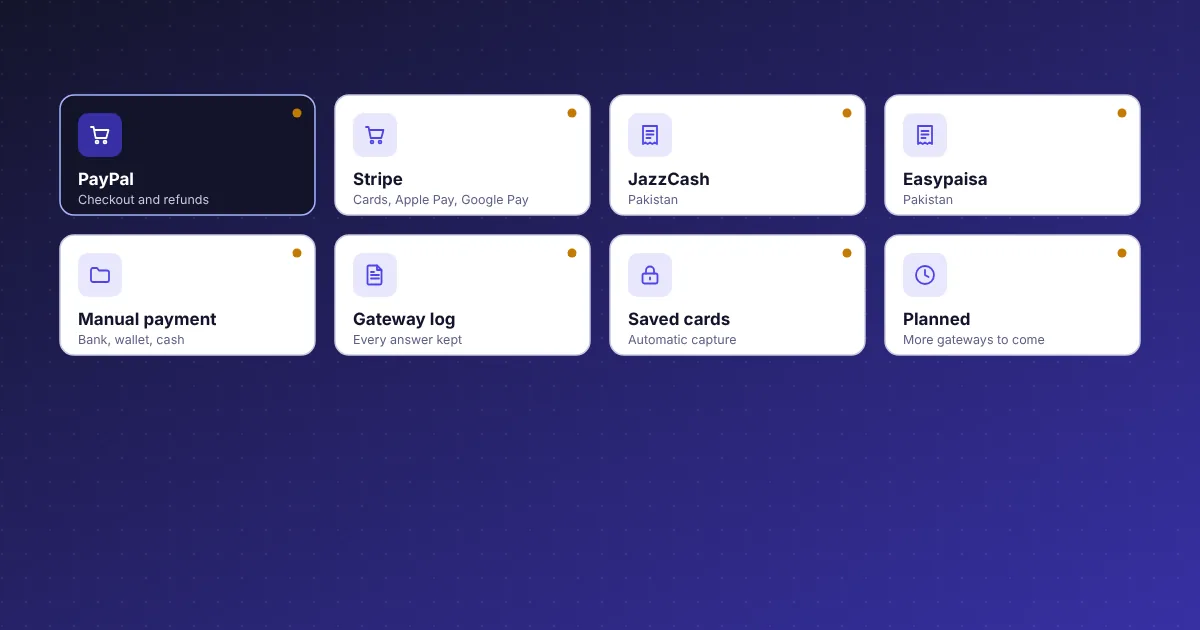
Each provider has its own page in the manual's Payment gateways chapter, from Manual payment through PayPal, Stripe, JazzCash and Easypaisa, and each page follows the same order: what to collect from the provider, where to paste it, which addresses to give the provider, and how to run a test. Addresses the provider needs is a section on its own because return and notification addresses are the most common cause of a payment that completes at the provider and never reaches the invoice.
Clients see the result as a short list on the invoice page. What the client sees in the manual describes it: an unpaid invoice shows the amount, the methods open to that client, and a Pay now action; the client dashboard also shows a Pay now button when anything is unpaid. Payment methods per client can narrow that list for a particular account, and the Payment Methods page in the account lists any saved cards. The order of gateways you chose is the order the client sees, so a hosting company that prefers bank transfer in one market and cards in another can arrange the list accordingly.
Manual bank transfer and mobile wallet payments for hosting
Plenty of hosting payments never touch a card network. Manual payment in CoreInto covers bank transfer, mobile wallet and cash: the gateway shows your instructions on the invoice, the client pays outside the system and quotes the invoice number, and a staff member records the payment on the invoice when it shows up. The invoice is then marked paid, the service is set up or unsuspended through the module, and the client receives the same payment confirmation email they would get from any other method.
Recording the payment is a short form on the invoice page: amount, date, the gateway used and a transaction reference such as the bank's reference number. Because it creates an ordinary transaction, the manual payment appears in the client's history, in the income report and in the batch invoice PDF export alongside card payments. Staff-only gateways extend this: a method can be hidden from clients but available to staff, which is useful for recording payments that arrive through a channel you do not advertise.
Clients who pay this way still benefit from automation. Reminders and late fees apply to their invoices like any other, and Add Funds lets a client who sends one transfer a quarter deposit credit that later invoices draw down. For a company whose clients are mostly in Pakistan, manual payment sits beside JazzCash and Easypaisa, so a client can choose between a wallet payment that confirms itself and a transfer that staff confirm. Either way the invoice, the transaction and the service move together, and nothing has to be reconciled in a spreadsheet.
PayPal payments for hosting invoices
PayPal is the method many hosting clients already expect, and CoreInto's PayPal gateway is set up from its own settings page under Settings > Payment Gateways. You enter the credentials from your PayPal account, leave the sandbox switch on, and copy the notification address shown on the page into PayPal's settings. A test payment from a sandbox buyer account then proves the whole round trip: the client is sent to PayPal, pays, and returns to an invoice that is marked paid.
Behind the scenes the PayPal answer is checked and matched to the invoice before a transaction is created, which protects you from a forged return. The Gateway Log keeps the exchange, so if PayPal reports a payment that does not appear on an invoice, staff can open the log, see the message and the reason it was not applied, and record the payment by hand if the money truly arrived. The same log shows refunds and reversals sent back through the gateway.
PayPal works with the rest of billing without special handling. A client can settle several invoices with mass pay in one PayPal payment, top up credit through Add Funds, or pay a quote that has become an invoice. Payment methods per client let you restrict PayPal to certain accounts if your fee structure needs that, and the Gateway Fee add-on module can add the provider's fee to the amount so the invoice total is what you receive. As with every built-in gateway, the implementation follows PayPal's published documentation and should be tried in the sandbox before live credentials go in.
Stripe with Apple Pay, Google Pay and saved cards for hosting
Stripe is CoreInto's card gateway. The client enters a card on your invoice page or uses Apple Pay or Google Pay where their device offers it, and the payment completes without leaving your client area. Setup follows the usual pattern: keys from the Stripe dashboard go on the gateway's settings page, the addresses the provider needs are copied back to Stripe, and the sandbox mode uses Stripe's test keys until a test card has paid an invoice end to end.
Saved cards are where Stripe earns its place. A client can keep a card on file during checkout or from Payment Methods in their account; CoreInto stores a token, encrypted with the key in your configuration file, never the card number. When the daily run generates a renewal invoice it attempts automatic capture against the saved card, so most renewals are paid before any reminder is sent. Card expiry notices go out ahead of the expiry month, asking the client to add a new card, and a declined capture simply leaves the invoice in the normal reminder schedule.
Refunds go back the way they came. From the transaction, staff can refund a Stripe payment through the gateway, and the refund is recorded as a transaction against the invoice. The Gateway Log holds every request and answer, including captures that failed, which is the first place to look when a client says they were charged but the invoice is still unpaid. Stripe can also be limited to certain clients through payment methods per client, and the Gateway Fee module can add a surcharge where your market allows it.
JazzCash and Easypaisa payment gateways for Pakistan hosting
Hosting companies serving Pakistan need wallet payments, and CoreInto includes JazzCash and Easypaisa as built-in gateways rather than add-ons to be bought later. Each has a settings page under Settings > Payment Gateways where the merchant credentials from the provider are entered, the sandbox switch is set, and the return and notification addresses the provider needs are shown ready to copy. With per-country currency by GeoIP, a visitor from Pakistan sees rupee prices in the store and, once a client, sees these wallets first on the invoice if you order the gateways that way.
The client flow is the same as for any gateway. The invoice page offers JazzCash or Easypaisa, the client is taken to the provider to approve the payment from their wallet, and the provider's answer returns to CoreInto, where it is checked, matched to the invoice and turned into a transaction. The service is then set up or unsuspended through the server module without a staff member touching it, which is what makes wallet payments worthwhile for automation rather than just convenience.
Both gateways were built against the providers' documentation and their sandboxes, and the brief for every installation is the same: complete a sandbox payment before enabling live credentials. The Gateway Log records each attempt, so during testing you can see the exact answer the provider returned and compare it with the provider's documentation when something does not match. Manual payment remains available next to the wallets for clients who prefer to transfer from a bank and have staff confirm it.
Sandbox testing and the gateway log for payment troubleshooting
Every built-in gateway has a sandbox mode, and using it is not optional advice. The gateways were implemented from the providers' documentation, and providers change details, so the first invoice through each gateway should be a test one. Turn the sandbox on, enter the provider's test credentials, create a small invoice for a test client, pay it the way a client would, and confirm that the invoice is marked paid and the service action ran. Only then replace the test credentials with live ones.
Billing > Gateway Log is the record you consult when something does not line up. Each entry shows the gateway, the invoice, the request CoreInto sent and the answer the provider returned, with secrets hidden. A payment that completed at the provider but left the invoice unpaid will appear here with the reason it was not applied, usually a mismatch in amount, currency or invoice reference, and staff can then record the payment by hand with the provider's reference. The log also shows automatic captures of saved cards and refunds sent through the gateway.
The log sits among CoreInto's other logs, so a payment problem can be followed end to end: the Email Message Log confirms the invoice was sent, the Gateway Log shows the payment, the module log shows the unsuspend, and the client's activity log shows what they did in the account. Still to come and not yet tried is the manual's honest section on gateways that are planned but not available, and that honesty applies to testing too: a sandbox payment on your own installation is the proof that counts.
Refunds, card expiry notices and staff-only gateways
Taking money is half of payments; giving it back correctly is the other half. A refund in CoreInto starts from the transaction. Staff choose the amount, and where the payment came through PayPal or Stripe the refund can be sent back through the gateway so the client's card or account is credited by the provider. The refund is recorded as its own transaction, the invoice reflects it, and the client's history shows both sides. A refund can instead be placed on the client's credit balance when the client would rather apply it to the next invoice.
Card expiry notices prevent the most avoidable failed capture. Before a saved card reaches its expiry month, the client receives an email asking them to add a new card from Payment Methods, so the renewal invoice is captured on time. The template is editable like every other, and the Email Message Log shows when it was sent.
Staff-only gateways and payment methods per client give you control over who can pay how. A staff-only gateway is hidden from the client area and used when staff record payments received through a private channel. Payment methods per client restrict a particular account to certain gateways, which suits a client whose payments should always go through a bank, or a market where one wallet is preferred. The Gateway Fee add-on module, included with CoreInto and switched on under Settings > Add-on Modules, adds a provider's fee to the amount paid through a chosen gateway, so the invoice total you receive is the total you billed.
Planned payment gateways on the CoreInto roadmap
CoreInto ships with five payment methods today, and the manual has a section called Still to come and not yet tried that says plainly what is not there. Authorize.net, 2Checkout, Skrill, WorldPay, PayFast, Perfect Money and crypto providers are planned for a later update. None of them is available now, and nothing on this site should be read as a promise of a date. If one of those providers is essential to your business before it arrives, the honest answer is to use manual payment for it in the meantime or to wait.
Updates arrive through the same signed update mechanism as the rest of CoreInto: a release is downloaded from the licence server and verified against CoreInto's release key before it is applied, with a Database Update step when a release needs one. A new gateway added in a release appears under Settings > Payment Gateways like the existing ones, with its own settings page and sandbox switch, and the same advice applies: test it before taking live payments.
Developers who cannot wait have two routes. The add-on module system, documented in the manual's For developers: how a module is built section, is how the Gateway Fee module and the PKNIC registrar module are packaged, and a payment module follows the same structure as a folder under modules. The JSON API at /api/v1 can also record a payment against an invoice from an outside script, so a payment taken on another system can be reflected in CoreInto with the provider's reference attached. Either route keeps your installation on the standard update path.