Renewal invoice generation ahead of due dates
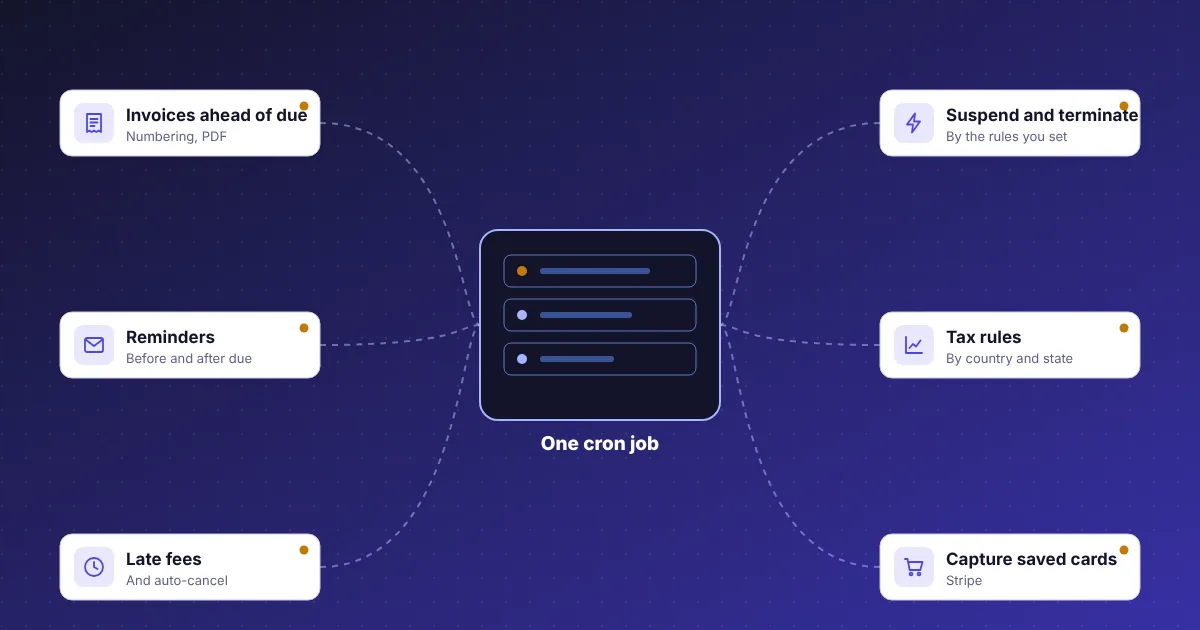
Every service and domain in CoreInto carries a next due date, and the billing engine works backwards from it. The daily run looks for anything falling due within the number of days you set under Automation Settings and creates the invoice then, so the client has time to pay before the service is at risk. A client with three hosting accounts and two domains due in the same week receives invoices for each, or, where the dates match, lines on one invoice, which keeps the inbox tidy and the payment simple.
Invoice numbering follows a scheme you choose, so your sequence stays continuous after a move from another system and your accountant sees the format they expect. Each invoice has a status, can be split into two or merged with another, and can be cancelled rather than deleted, which keeps the record honest. The PDF carries your logo and the tax ID label from the tax configuration, and the client receives it by email from a template you can edit in every language you have installed.
The invoice itself is built from the catalogue. The product's per-term price, any configurable options and add-ons, the setup fee on first order, promotions still in force and the client's currency all come together on the lines. Because the invoice is created by the same code whether the daily run, a staff member or an order triggers it, the result is consistent, and a staff member who needs an invoice today can create one by hand or run the generation task from Automation Status.
Payment reminders and late fees on hosting invoices
An invoice that nobody is reminded about is an invoice that is paid late, so CoreInto sends reminders on a schedule you define. Unpaid reminders go out on the days you set before the due date, overdue notices follow on the days you set after it, and each message is an email template with merge fields for the amount, the due date and a direct link to pay. Templates are editable, and a client who has chosen Urdu or another installed language receives the version written for that language.
Late fees are a setting rather than a manual chore. When an invoice passes its due date the daily run can add a late fee according to the setting you chose, and the client is told about it in the overdue notice. Staff can see on the invoice that the fee was applied automatically and can remove it where goodwill is the better choice; the transaction record shows what happened either way.
Reminders tie into everything else on the account. A client who signs in sees the amount due and a Pay now button on their dashboard, and the My Invoices page opens with tiles for unpaid and overdue invoices and what was paid this year. Staff see the same picture from the client page, including the full email history, so a support question about a reminder can be answered with the exact message that was sent and the time it went out. Mass messages can be used when a payment provider changes or a bank account moves, so every client hears it once.
Automatic suspension and termination of unpaid services
Chasing non-payment by hand does not scale, so CoreInto suspends and terminates on a schedule. Automation Settings holds the number of days after the due date at which an unpaid service is suspended and the later number at which it is terminated. On the day, the daily run calls the server module, intoPanel or cPanel & WHM, to suspend the account with a reason that the client sees on their service page, and sends the suspension email. The reason matters because support staff and the client both know at once that payment, not a fault, is the cause.
Paying the invoice reverses the process without a ticket. The payment marks the invoice paid, the service is unsuspended through the same module, and the next due date moves forward by one term. When a module action cannot be completed immediately, for example because a server is unreachable, it waits in the Pending Module Actions queue and is retried, so a short outage does not leave a paying client suspended.
Termination is deliberate and later. A service that remains unpaid past the termination period is terminated through the module and the invoice is cancelled, which stops the account from carrying a debt for a product the client never kept. Settings that govern services decide how the automation treats each stage, and staff can suspend or unsuspend from the service page at any time with their own reason. Every action is written to the module log with secrets hidden, so the sequence can be reviewed afterwards.
Saved cards and automatic capture for recurring hosting payments
The simplest invoice to collect is one the client never has to think about. With Stripe set up, a client can save a card during checkout or from Payment Methods in their account, and the card token is stored encrypted with the key kept in your configuration file. When a renewal invoice is generated the daily run attempts capture against the saved card, and a successful charge marks the invoice paid before the first reminder would have been sent.
Captures do fail, and CoreInto handles the ordinary cases. A declined charge leaves the invoice unpaid and the normal reminder schedule takes over, so the client is told in time to pay another way. Card expiry notices go out before a stored card reaches its expiry month, prompting the client to add a new one, and the Gateway Log under Billing records every request and answer from the provider so a staff member can see exactly what Stripe said.
Clients stay in control of their own methods. The Payment Methods page lists saved cards and lets a client remove one, and staff can restrict which gateways a particular client may use. Where a client prefers not to store a card, the same invoice can be paid from the client area through PayPal, JazzCash, Easypaisa or a manual bank transfer, or settled from the credit balance. Automatic capture is one option among several rather than a requirement, which suits hosting companies serving markets where card use is not the norm.
Credit balance, add funds and mass pay for clients
Every client in CoreInto has a credit balance in their own currency, and that balance is the quiet workhorse of billing. Staff can add credit for goodwill, for a refund that stays on the account, or as part of a migration, and the balance is applied to invoices as they are generated or when the client chooses. The client page shows the balance alongside invoices and transactions, so there is never a question about where a figure came from.
Add Funds lets clients top up the balance themselves. From the client area they choose an amount, pay it through any gateway open to them, and the deposit becomes credit that future invoices draw down. For clients who pay by bank transfer or mobile wallet once a quarter, this turns several small payments into one deposit, which reduces fees and the number of times a staff member has to match a transfer to an invoice.
Mass pay solves the other common case: a client with several invoices due at once. Instead of paying each one separately, the client selects the open invoices and settles them in a single payment through a gateway, and CoreInto allocates the money across the invoices and records one transaction per invoice. Combined with credit, mass pay means a client with a hosting plan, two domains and an add-on due in the same month pays once. Refunds, reversals and disputes have their own records under Billing, so the audit trail is complete whichever way the money moved.
Quotes, credit notes, debit notes and billable items
Not every charge starts as a renewal. Quotes let staff put a priced proposal in front of a client: priced lines with tax and notes, sent by email. The client sees it under Quotes in their account and can accept it, at which point CoreInto turns it into an invoice without anyone retyping the lines. Quotes that are not accepted simply expire, so the pipeline of proposals stays visible without cluttering the invoice list.
Billable items cover work that does not fit a product: a migration, an hour of help, a custom licence. A staff member records the item against the client with a description and amount, and it is invoiced through the same billing engine as a product. This keeps one-off work inside the same invoicing, reminder and payment flow as everything else rather than in a spreadsheet beside it.
Credit and debit notes correct the record without editing history. A credit note reduces what a client owes, or returns credit to the balance, with a reason attached; a debit note adds a charge after the fact. Both appear on the client's account and in reports, which is what an accountant expects when reconciling. Disputes are recorded against payments when a provider reports a chargeback, so staff can see the state of the money and the service together and decide whether to suspend while the dispute is open.
Tax rules and multi-currency exchange rates in hosting billing
Hosting companies sell across borders, so tax and currency are settings rather than afterthoughts. Settings > Tax Configuration holds tax rules with rates by country and state, applied inclusively or exclusively according to how your prices are set, and a label for the tax ID that appears on invoices. A client's country and state on their billing details decide which rule applies, and the invoice shows the tax line with the rate used so nothing has to be explained later.
Currencies live under Settings > Currencies. Each has a code, symbol, format and an exchange rate against your base currency, and the daily run refreshes those rates so prices shown in secondary currencies stay in step. Products carry prices per currency, which means you can round to sensible figures rather than displaying awkward conversions, and promotions and domain pricing follow the same pattern. A client's currency is fixed on their account, and the Change currency option in the client area is there for the cases where it should move.
Visitors see the right currency before they sign in. GeoIP-based currency by country maps each country to a currency, so a visitor from Pakistan sees rupees and one from Germany sees euros on the same store without choosing. Reports under the Reports menu, including income and new clients, filter by currency and export to CSV, and the batch invoice PDF export produces a period's invoices in one file for bookkeeping.
Automation Status page for monitoring the billing cron
Automation only earns trust when you can see it working. Utilities > Automation Status lists every task the cron job runs, with the time of its last run, what it processed and whether it finished cleanly. If the daily run has not fired since yesterday, the page says so, which is the first thing to check when invoices seem late. Each task has a Run now button, so a changed reminder setting can be tested immediately instead of waiting for the next scheduled run.
The daily tasks and the frequent tasks are separated on the page. Invoice generation, reminders, late fees, suspensions, terminations, domain sync and notices, currency rates, backups and prune run once a day; the email queue, ticket mailboxes and module queue run on every firing of the cron job. Settings under Settings > Automation Settings steer the daily run, with ten tabs covering the number of days for each stage, which emails are sent and which tasks are turned off.
When something looks wrong, the logs are nearby. The Email Message Log shows whether a reminder left the queue, the module log shows what a server said when a suspension was attempted, and the Gateway Log shows every automatic capture. Because the cron job is the only moving part, a hosting company can check with its host that the job is scheduled, confirm on Automation Status that it ran, and be certain that invoicing is current. The same page is where staff with shell access can match what php cli.php cron reports, which is useful on servers where the admin area is temporarily unreachable.