A hosting support ticket system inside your billing
Hosting support is different from most help desks because almost every question is about something the company is already billing for: a suspended account, an invoice that did not go through, a domain that is about to expire. A separate ticket tool makes staff look that information up somewhere else. CoreInto's support desk is part of the same application as the invoices, services and domains, so a ticket opens next to the client's record and the answer is usually one click away.
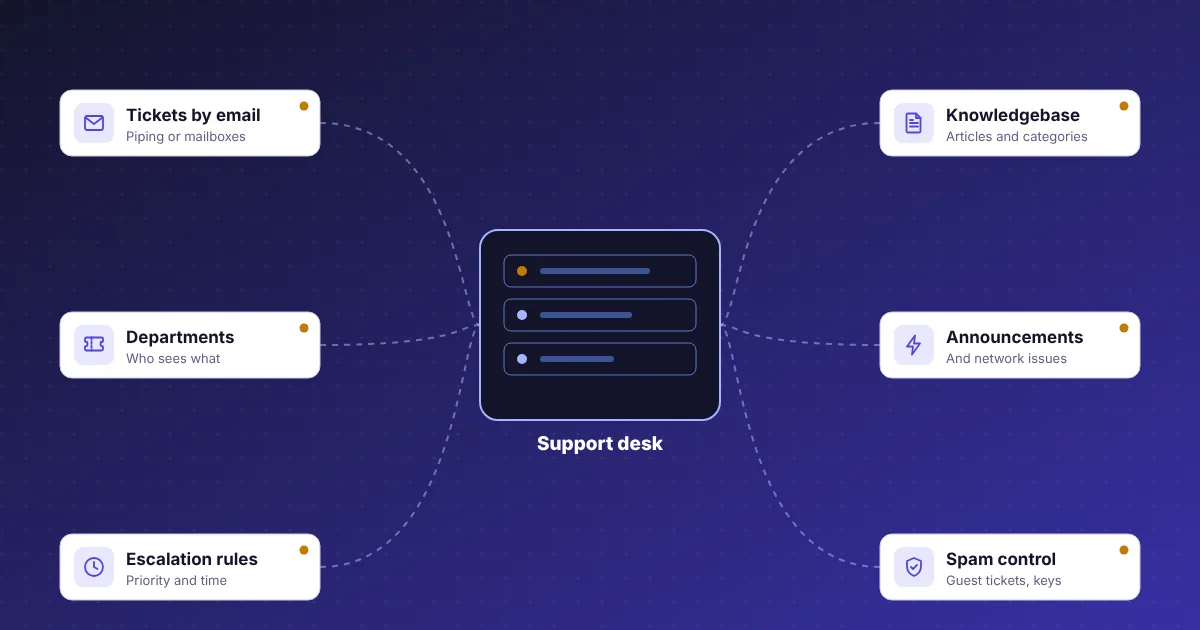
Tickets come in from four directions. Clients open them from the client area, where /client/tickets shows tiles for open tickets, tickets awaiting their reply and closed ones. Visitors who are not signed in can open a guest ticket and follow it through an access link. Staff open tickets on a client's behalf under Support > Open New Ticket. And email sent to a department mailbox is turned into a ticket automatically, through piping or a POP/IMAP mailbox.
Around the tickets, the same menu holds a knowledgebase, announcements, downloads and a network issues page, so routine questions can be answered before they become tickets. Settings cover departments, ticket statuses, escalation rules and spam control, and the automation run closes idle tickets and removes old attachments. The Reports menu includes a tickets report with filters and CSV export, and a staff role decides who may open it. The rest of this page follows a ticket from mailbox to closure.
Support departments with their own mailboxes
A department is where a ticket lives and which staff see it. Settings > Support Departments creates as many as you need, such as sales, billing and technical support, each with a name, a description that clients see when choosing where to write, and the staff assigned to it. A department can be hidden from clients so that only staff open tickets in it, which suits an internal queue for abuse reports or server work.
Every department can have its own mailbox. The address is the one clients write to, and CoreInto uses it in two ways: as the sender of replies from that department and as the source of incoming tickets. Give the billing department billing@ and the technical department support@, and a client who writes to either address gets a ticket in the right place without choosing from a list. Replies carry the department's address, so a client who answers by email lands back in the same ticket.
Departments also shape routing later in a ticket's life. Staff can move a ticket between departments when it turns out to be a billing question after all, and an escalation rule can move tickets automatically when they wait too long in one queue. Support > Support Overview shows the counts per department and status so a manager can see at a glance where the backlog is. Each department's mailbox settings, piping or POP/IMAP, are covered in the next section.
Turning emails into tickets with piping or POP/IMAP
Most clients would rather send an email than fill in a form, and many never sign in at all. CoreInto accepts tickets by email in two ways, and each department chooses its own. With piping, the mail server passes every message for the department's address to CoreInto the moment it arrives, so the ticket appears at once. With a POP/IMAP mailbox, CoreInto signs in to the mailbox itself, and the frequent automation task that also drains the email queue and the module queue fetches new mail on each run.
Either way, the handling is the same. A new message becomes a new ticket in the department, with the sender matched to an existing client by email address where possible, and attachments are kept with the message. A reply whose subject carries an existing ticket number is added to that ticket instead of opening another. Spam control runs first, so blocked senders, subjects and phrases never create tickets, and an email from a banned domain is dropped.
Staff reply from the ticket page in the admin area. The reply goes to the client by email from the department's address, through PHP mail or SMTP as set on the Mail tab, and is recorded in the ticket and the email log. The client can answer by email again or sign in and continue in the client area; both arrive in the same thread. The admin guide has the mailbox settings for each department.
Ticket statuses, escalation rules and spam control
A ticket's status tells staff and clients whose turn it is. Settings > Ticket Statuses lets you define your own set beyond the usual open, answered, customer reply and closed, each with a colour and an order, and decide which ones count as open in the client area tiles. Changing the status is part of every staff reply, and a client's reply sets it back to a state that needs attention.
Escalation rules keep tickets from being forgotten. Settings > Escalation Rules defines what happens when a ticket in a chosen department or status has waited longer than a set time: raise the priority, move it to another department, change its status or notify staff. The daily automation run applies the rules, so a question that sat over a weekend is at the top of the queue on Monday without anyone checking the dates.
Spam control stops junk before it costs anyone time. Settings > Spam Control blocks by sender address, subject and phrases in the message, and tickets that match are not created. The security pages add bans by IP address and by email domain that apply across the system, not only to tickets. Together these keep the queue honest, so Support Overview shows real work rather than a count inflated by noise. Staff see every change on the ticket itself, and the activity and email logs under Staff and security record who did what and when.
Predefined replies and Markdown for faster answers
Most hosting tickets fall into a handful of patterns: how to change nameservers, why an account was suspended, where to find an invoice. Support > Predefined Replies stores the answers to those patterns once, organised in groups, so a staff member picks one from the reply box, edits the details that differ and sends it. A new team member answers like an experienced one from the first day, and the wording stays consistent across the team.
Messages support Markdown, so a reply can carry numbered steps, bold warnings, links and code without an HTML editor. A list of DNS records or a cron command is shown as code and survives the trip through email, and the client sees the same formatting in the client area. Clients can use Markdown in their own messages too, which helps when they paste an error or a log excerpt.
Staff work from the ticket page in the admin area, where the client's services, domains and invoices are a click away and the ticket can be assigned, moved or given a new status in the same action as the reply. If a staff member needs to see what the client sees, the sign in as client function on the client page opens the client area as that client. Everything sent is recorded on the ticket, in the client's email history and in the email log, so a later reviewer can read the whole exchange in order.
Guest tickets, access links and the client area
Not everyone who needs help has an account. A prospective client asking about a plan, a visitor reporting a broken link or someone who lost access to their email can all open a guest ticket from the public site when the department allows it. CoreInto sends them an access key link by email; opening the link shows the ticket and lets them reply without creating an account or a password. If the same person later signs up, staff can see the history under their email address.
For signed-in clients, /client/tickets is the support home. Three tiles count open tickets, tickets awaiting the client's reply and closed ones, and a notice appears when replies are waiting. The table lists subject and number, department, last update and a status badge; Open shows tickets that are not closed and All shows every ticket. A client opens a new ticket by choosing a department, writing a subject and message in Markdown, and attaching files, and the ticket is tied to the services and invoices on the account.
Clients with several logins share the same queue, because one account can have many users with their own permissions. The contact form at /contact exists when it is turned on and reminds signed-in people that a ticket is faster. Clients pick their own language, so a client reading in Urdu sees the ticket pages in Urdu with right-to-left layout. The customer guide walks through every client-area support page.
Knowledgebase, announcements, downloads and network issues
The cheapest ticket is the one never opened. Support > Knowledgebase publishes articles in categories that clients read from the client area, so the question about nameservers or email settings is answered before anyone writes in. Articles are written once and edited in place, and the WHMCS import brings an existing knowledgebase across, so a company moving from WHMCS keeps the articles it already wrote.
Announcements carry news: a price change, a new product, a planned maintenance window. They appear in the client area and can be read by anyone who signs in. Downloads holds files you want clients to have, such as manuals, logos or configuration files, organised for the client area's Downloads page. Network Issues is a status board for the servers you run: open an issue, say which server or service is affected and what is being done, update it as work proceeds, and close it when the service is back, so clients can check before they open a ticket about an outage.
All four live under the same Support menu as tickets, and they show in the client area beside Support Tickets as Knowledgebase, Announcements, Downloads and Network Status. Mass messages, sent to all clients or a group from the Clients area, cover the cases where an announcement is not enough and every client should receive an email. The features page lists the rest of the support area alongside billing and provisioning.
Closing idle tickets and cleaning up attachments automatically
A ticket that was answered and never acknowledged should not stay open forever, and a storage folder should not grow with every screenshot a client ever sent. Two automation tasks take care of this. The idle-ticket task closes tickets that have waited for a client reply longer than the number of days you set in Automation Settings; the client can still reopen by replying, and the closure is recorded on the ticket. The attachment cleanup task removes attachments from tickets closed longer ago than a second setting, keeping the messages and deleting only the files.
Both run as part of the daily automation from the single cron job that also generates invoices, sends reminders, suspends unpaid services, syncs domains, refreshes currency rates and makes the database backup. Utilities > Automation Status shows when each task last ran and what it did, and any task can be run by hand from there when you change a setting and want to see the effect at once. The frequent run, every few minutes, handles the email queue, the ticket mailboxes and the module queue.
Everything else about ticket housekeeping is a setting too: how many days before a ticket counts as idle, how long attachments are kept, which statuses count as open, whether guests may open tickets and in which departments. Tickets also appear in the tickets report under Reports, with filters, CSV export and printing, and on the client page beside services, domains and invoices. For how the automation run is organised, see the hosting automation page.